

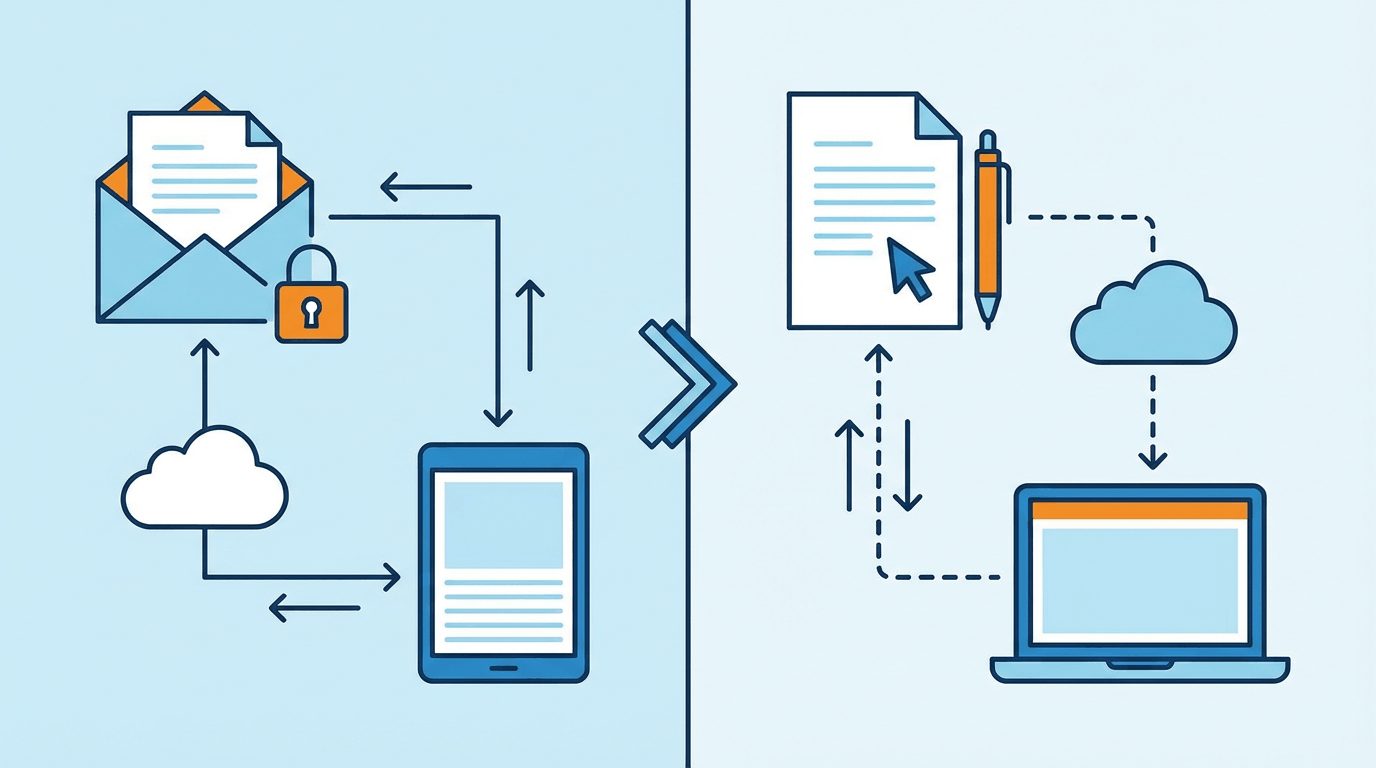
Why PDF vs Word docs is a decision between locked design and quick changes. I use PDFs when I want files to appear identical across machines, such as when sharing contracts or files that must not be altered.
For quick edits or for working with teams, I choose Word documents. Each kind serves a different purpose, so choosing correctly saves time. I’ll demonstrate how they each excel at everyday work.
Core Distinctions
When I compare PDF and Word documents, I find that they are fundamentally different and each has its own strengths. PDF, a Portable Document Format, is intended to freeze a file’s appearance everywhere I view it. Word docs, usually in .docx format, are made for writing, editing, and working back and forth.
There are advantages and compromises to each style once I need to distribute, edit, or secure a file. The right one for me is based on what I need to edit, to share, to preserve formatting, or to keep confidential. Below, I delineate these differences in terms of their key characteristics and applications.
|
Feature |
|
Word Document |
|
Editability |
Needs special tools, not easy to edit |
Simple, direct editing |
|
Layout Integrity |
Keeps layout on all devices |
Can shift across apps |
|
Security |
Passwords, audit trails, e-signature |
Basic, easy to change |
|
Collaboration |
Limited, usually post-creation |
Real-time, track changes |
|
Accessibility |
Needs tagging, supports screen readers |
Needs formatting, adaptable |
|
Conversion |
Needs tools, may lose formatting |
Easy to convert to PDF |
1. Creation vs. Presentation
Word files are my preferred format for writing and revising. I utilize them to open up essays, scribble meeting notes, or accumulate feedback. They’re designed for authoring, editing, and iteration with collaborators.
PDFs shine when I want to display a final product. If I need to transmit a report or a form that should appear identical for everyone, PDF is the solution. How I intend to use the file determines the format. If layout and design are important, I choose PDF. If I still have to work on the content, Word is more accommodating.
2. Editability
For editing, Word files rule. I can rapidly insert, remove, or rearrange content and photos. Features such as track changes make it simple for teams to collaborate. PDFs are distinct. They are not designed to be directly edited, which usually implies I need fancy software such as Adobe Acrobat.
For collaborative projects or continuous editing, Word documents allow everyone to participate. If I just want to distribute a final version, I use PDF. Now and then, I want to flip from one to the other, but conversion can be tricky and can foul up the formatting.
3. Layout Integrity
PDFs look the same wherever I open them. This is crucial in business reports or legal documents. I don’t have to fret if my reader has a phone, a tablet, or a computer. Word documents are reflowable and can change formatting based on the application or platform. This can be an issue if I require the file to appear a specific way for everyone. For serious documents that need to maintain their formatting, I rely on PDFs.
4. Security
PDFs have superior inherent security. I can password-protect, restrict printing, or even see who opened or signed a file when I use e-signature tools. Word files are easier to get to and modify, so they’re less secure for confidential information. Whenever I’m working with contracts or personal information, I rely on PDF to protect it instead. Choosing the appropriate format is a function of how much I need to safeguard the document.
5. Accessibility
PDFs and word files can be accessible, but it is hard. If properly tagged and structured, PDFs play nicely with screen readers. Word files are accessible, although I frequently have to update the styles or insert alt text. If I want everyone, regardless of device or specific needs, to be able to use my document, then I need to design for accessibility from the beginning. This is crucial for teams and audiences of varying abilities.
When to Use PDF
PDFs are best when I want a document to look identical for all readers, regardless of location and software. I turn to PDFs for exchanging, storing, and displaying documents with others, particularly when I want a document to maintain its format, layout, and content. Security, accessibility, and professionalism are why I gravitate to PDF over Word in many situations.
Finalizing Documents
I use PDF files when I have a final version of a document that shouldn’t be modified. For contracts, certificates, or signed agreements, locking the layout is a no-brainer for me. PDFs prevent people from making unauthorized edits and hold every word and image where you put it.
It’s important for anything legally or financially significant, where even a tiny alteration would be problematic. A PDF retains all fonts, tables, charts, and images just as I wish. When I send an invoice or proposal, I know that the recipient will see it in the same format as I do.
That makes my work look slick and professional. With native security options such as password protection and permissions management, I can prevent other people from copying, printing, or modifying documents without my consent.
For compliance, particularly with sensitive or confidential files, PDFs' support for audit trails allows me to monitor changes and e-signatures. That’s a huge advantage when I need to demonstrate who did what and when in a document’s life cycle.
Sharing Widely
When I want a file to display the same way everywhere, I choose PDF. If your friend pulls this up on their phone, tablet, or computer, the PDF will pop open and look right on whatever they’ve got.
For example, when sending a report or newsletter out to a worldwide team, I know that we’re all looking at the same thing. PDFs are convenient to share, either by email or posting on a website.
A lot of public documents, such as manuals, application forms, or downloadable guides, work well as PDFs because anyone can open them without requiring the program used to create the file. If my file doesn’t require continuous edits, PDF is the way to go.
It prints neatly, and it’s less prone to crashing when opened on various platforms. This maintains the professional polish of my documents for clients and partners.
Archiving Records
PDFs are my default for saving stuff I want to hang on to for years. They preserve their formatting and content indefinitely, so I can be confident that an old invoice or record will open the same way I stored it. This is crucial for legal or financial records, where you may have to present an unedited original.
PDFs are compliant with many legal standards for document retention, so I know my archives are safe. For archival purposes, or when something has to be secure and not easily altered, PDF's permanence soothes me.
While Word files are better for screen readers in some cases, I occasionally use both. Saving one record in Word for accessibility and another in PDF for stability addresses more bases. This two-pronged strategy allows me to leverage each format's benefits for my writing.
When to Use Word
Word documents are logical for work in which revisions and collaboration are important. I use Word when I know I’ll be updating a file, be it a long essay, a project plan, or meeting notes. Word allows me to edit, comment, and track changes, making it convenient to collaborate with others or simply polish my own draft. A lot of us, myself included, begin in Word and then export to PDF for broader distribution.
Drafting Content
I use Word when I want to begin drafting. The editing tools simplify moving text, correcting errors, or inserting thoughts. Word’s formatting choices keep my thinking in line, from headings and bullet points to tables and images.
I can tinker with various layouts and styles on the fly, which comes in handy when free-form brainstorming or outlining complicated subjects. If I’m writing a paper or a business report, I know I’ll want to adjust it multiple times. Word’s flexibility allows me to keep my thoughts flowing without having to hit reset.
Word shines in terms of accessibility. When I want to ensure a document plays nicely with screen readers, Word frequently beats out PDF, particularly if the PDF was created from Word in the first place. Here’s a quick comparison:
|
Feature |
Word Document (.docx) |
|
|
Easy editing |
Yes |
No |
|
Rich formatting options |
Yes |
Limited |
|
Change tracking |
Yes |
No |
|
Accessibility (screen readers) |
Good |
Varies |
|
Best for drafts |
Yes |
No |
Active Collaboration
When a project requires a team effort, I stick with Word. I can distribute the file, and everyone can comment or do change tracking. It’s easy to know who made what change, and the integrated review tools keep comments structured.
Editing in real time, particularly using cloud tools, allows my team and me to collaborate simultaneously. This accelerates reviews and decisions, eliminating endless email threads and version chaos. Word’s collaboration tools aren’t cute add-ons; they are mission-critical for seamless work in our day.
Internal Documents
For files that my team modifies frequently, such as memos, notes, or reports, Word simply works better. I can load a file, make a fast edit, and shoot it back out. Edits are quick, and it’s simple to share.
Word keeps us all on the same page, which is crucial to effective communication. Even for sensitive work, I’d probably use Word’s password protection, it’s not the strongest. If I require additional security, I’ll convert to PDF after editing is complete.
The Conversion Challenge
Converting PDFs to Word files and vice versa is something we all need to do, but it’s never easy. I’ve witnessed personally how the slightest change in format can break a layout, disrupt a table, or jumble an image. It’s not always free, either; there are conversion tools that will charge you as much as $500, and others online for nothing at all, but with privacy or quality trade-offs.
Users who’ve been able to convert Word files to PDF since 2007 have integrated tools for immediate, one-step output. The reverse process from PDF to Word is often more of a headache if the file has images, unique fonts, or tricky tables.
Word to PDF
I send a Word file as a PDF when I want the formatting to be consistent across the board. PDF secures the layout, fonts, and graphics, which are critical for forms, resumes, and contracts. Since 2007, Word has had “Save as PDF” features, so this step is quite simple for most folks.
All I need is a couple of quick clicks, and it is prepped for worldwide distribution, protected from accidental modifications.
The native PDF export typically performs better than third-party add-ons because it preserves the formatting. I use this handy when polishing a document before sending it off to clients or coworkers.
PDF to Word
With a PDF that requires edits, things get sticky. Most PDFs aren’t intended to be converted, so getting them back into Word can be hard. Some online tools can do this, but I’m wary of privacy and output quality.
A few desktop software programs with a higher price tag do a better job. Regardless of the tool, I anticipate losing some formatting. Images shift, fonts vary, and tables break. After any conversion, I inspect the document carefully to spot these problems before I begin editing or distributing.
Formatting Pitfalls
The biggest challenge with any conversion is maintaining the look of the document. Images occasionally fade away or shrink. Tables can get misplaced, and fonts can switch if they are not supported in both.
I’ve come to verify each page after converting, ensuring the text aligns and nothing critical is lost. Trouble-free, I rely on trusted tools and keep the design of my source file as simple as possible.
Password protection is one such feature that PDF distinguishes itself with, offering control over who can open or modify the file. Editing a PDF remains difficult without proper software.
Checklist for Successful Document Conversion
- Pick the right tool: Compare free online options with paid software.
- Prepare your file: Use standard fonts and simple layouts.
- Convert using built-in features when possible.
- Double-check every page. Look for missing images or broken tables.
- Protect sensitive files: Consider password-protecting important PDFs.
Beyond the Basics
As I consider the PDF vs. Word debate, it’s evident that both formats have advanced well beyond mere text and formatting. Each brings unique features, making them ideal for different needs and contexts. Knowing these specifics helps me select the appropriate one for a given task.
Interactive Elements
PDFs even allowed me to integrate interactive forms, clickable buttons, embedded videos, and digital signatures. For example, I can make a poll or a sign-up sheet, and everyone can sign up right on their device, sans printing.
That’s useful in business, government or education, where fast feedback counts. PDFs allow me to embed audio or video clips, which is great for training materials or product manuals.
Word files can have links, bookmarks, and comments. I frequently deploy these when prepping reports or working with a team. Comments and tracked changes assist me in controlling feedback and maintaining conversations in a single location.
It does not flow as smoothly as a PDF when it comes to interactive images, but it enables direct editing and continued conversation.
Interactive things make documents fun. They empower readers to do, not just read. That’s true even if it’s a link in a Word doc or a fillable field in a PDF. I find these great for walking someone through a process or making sure critical steps don’t get forgotten.
Here’s the thing I notice, though: PDFs really excel in situations where I want static, secure interaction, such as digital signatures or audit trails. Word docs still work better for editing, feedback, or drafting when lots of changes are anticipated.
Version Control
Version control keeps my work in order. With Word, it’s a snap to track changes and leave comments. I can view who edited what and when. This allows you to revert to a previous draft easily. For group projects, this control level helps keep everyone on the same page and fosters accountability.
PDFs can track actions such as signing or opening a document (great for legal records). Actual version control—who changed what, when—is much more robust in Word. I use it when writing contracts, reports, or policies that involve multiple contributors.
Collaboration relies on an obvious versioning history. Without it, errors occur, and efforts fall through the cracks. For document development, Word is by far the winner in my experience, while PDFs are best for archiving or distributing the final version.
File Integrity
File integrity is important when sharing documents. PDFs are difficult to accidentally edit, so what I send is what others receive. This dependability is essential for agreements, memos, or policy statements. PDF standards, established by ISO, provide an additional level of assurance, particularly in heavily regulated sectors.
Word files are made for editing. Even with password protection, it’s simpler for someone to alter things either accidentally or intentionally. For anything delicate, I invariably convert to pdf before distributing. More sophisticated PDF editors provide mechanisms to modify documents securely, but they tend to be expensive.
To maintain documents professionally and protected, I employ PDFs for all things official or sensitive and adhere to Word for notes or active writing. This gives me a way to compromise between flexibility and the need to shield my work.
Choosing Your Format
When I select PDF versus Word for my work, I begin by considering what the project demands. If I’m writing something subject to numerous edits, like a report draft or research paper, Word makes more sense.
Word’s editing tools are easy to employ. I can monitor edits, comment, and collaborate simultaneously. This is nice when my team operates from various locations. We can all view each other’s edits, which keeps things spry.
When I have to distribute a finalized document—say a contract or a company policy I opt for PDF. PDFs lock my file’s appearance, so regardless of who opens it or on what device, it always looks the same.
This formatting consistency is important if you’re swapping files with people in other nations or printing. I realize page breaks, fonts, and images won’t shift. That’s why I use PDFs for e-books, manuals, and letters.
Security is important. If I want to lock my work or keep it from being edited, PDF provides me with more options. I can throw a password on or make it so they can only read, not edit, the file.
Certain PDFs can even display who opened or signed the file when I use specific e-signature apps. This comes in handy when I need evidence that my piece was viewed or signed by the appropriate individual.
I consider who is going to read my file. Others want to manipulate or annotate the content, so Word is best for them. Other people simply want to read or print, and they don’t want to fret about the layout cracking, so PDF is the more secure choice. If my audience is on a variety of software or devices, a PDF is less of a gamble because it displays the same everywhere.
It can be quite clunky to convert back and forth from PDF to Word if I’m even equipped to do it. Occasionally, things like images or tables can shift when I jump from one format to the other. So, I strategize and pick the correct format at each stage.
Here are the key things I ask myself before I pick a format:
- Do I need easy editing and teamwork? (Word)
- Is my file in its final form? (PDF)
- Does security or access control matter? (PDF)
- Will my viewers want to edit or only read, Word or PDF?
- Is it important that the layout never changes? (PDF)
- Do I need a record of who signed or saw? (PDF)
- Do I have access to conversion utilities if necessary?
Conclusion
I view obvious trade-offs with PDF and Word. I go for PDF if I want to keep my layout locked or need to share files that look the same on any device. I use Word when I’m going to be making edits, comments, or collaborating with others.
There’s a time and a place for each. I get in trouble if I attempt to switch back and forth a lot, so I choose the right one from the jump. For instance, I send out invoices as PDFs, so nothing moves. I write reports in Word for easy edits.
Either works, depending on my goal. If you want the best outcome, consider how you are going to need to distribute or modify your file and then choose accordingly.







1 thought on “PDF vs Word Documents: Which Format Is Better for Sharing?”